

Introduction
Applications represent a Laravel application that is deployed to Laravel Cloud. Applications can be created from official Laravel starter kits or from existing GitHub, Bitbucket, or GitLab repositories. Applications can contain many environments and resources.Creating applications
Laravel Cloud offers two ways to create applications:- From Starter Kits - Bootstrap a new application using official Laravel starter kits
- From Existing Repository - Import and deploy from your existing Git repository
Applications cannot be transferred between organizations once created. Applications are permanently associated with the organization they are created in.
Creating from starter kits
Laravel Cloud supports creating applications from official Laravel starter kits, allowing you to deploy a production-ready Laravel application in minutes without needing an existing repository.Available starter kits
Laravel Cloud provides the following official starter kit templates:- Laravel - A new, empty Laravel application
- React Starter Kit - React, TypeScript, Inertia, shadcn/ui
- Vue Starter Kit - Vue, TypeScript, Inertia, shadcn-vue
- Livewire Starter Kit - Livewire, Laravel Volt, Flux UI
Creating from a starter kit
When creating an application from a starter kit:- Select “Use a template” from the application creation page
- Choose your desired starter kit template
- Configure your Git provider account (if not already connected)
- Set your repository name and choose visibility (private or public)
- Assign an application name
- Select your deployment region
Starter kit applications work exactly like any other Laravel application on Laravel Cloud. Once deployed, you can customize, extend, and deploy changes just like applications created from existing repositories.
Creating from existing repository
When creating an application from an existing repository, you will need to select a source control repository that the application should be deployed from, assign the application a name, and select a region. If you have not already linked a source control provider account to your organization, you will be prompted to do so when you create your application. Typically, your Laravel Cloud organization structure should mirror your source control provider organization structure.After a source control provider has been authenticated, the repository (or repositories) selected
become available for all users in the organization to view and create applications from.
Regions
Laravel Cloud currently supports the following application regions:- US East (Virginia) /
us-east-1 - US East (Ohio) /
us-east-2 - CA Central (Central) /
ca-central-1 - EU Central (Frankfurt) /
eu-central-1 - EU West (Ireland) /
eu-west-1 - EU West (London) /
eu-west-2 - Asia Pacific (Singapore) /
ap-southeast-1 - Asia Pacific (Sydney) /
ap-southeast-2 - Asia Pacific (Tokyo) /
ap-northeast-1
Deleting applications
When deleting applications, all environments within that application will be deleted; however, resources such as databases, key-value stores ,and object storage buckets are not deleted, since they may be used by other applications within the environment. To delete these resources, navigate to your organization’s “Resources” tab.Troubleshooting
Reconnect Git repository
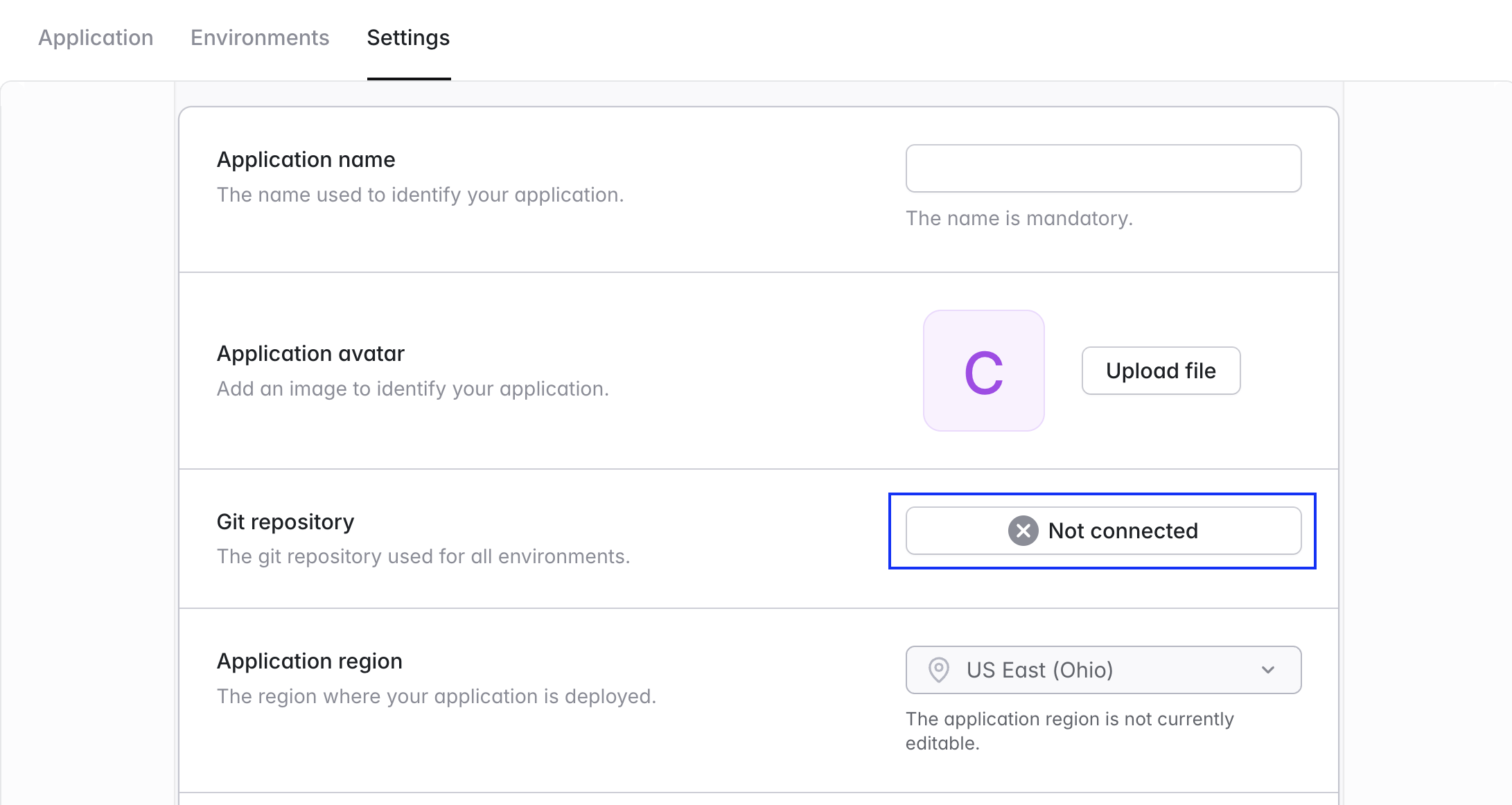
Applications can lose their connection to a Git repository if Laravel Cloud’s API access is revoked from within the source control provider. When this happens, your application’s environments can no longer deploy your latest changes. Follow these steps to restore your Git connection:- Navigate to your applications “Settings” page.
- Click the “Not connected” button next to “Git repository”.
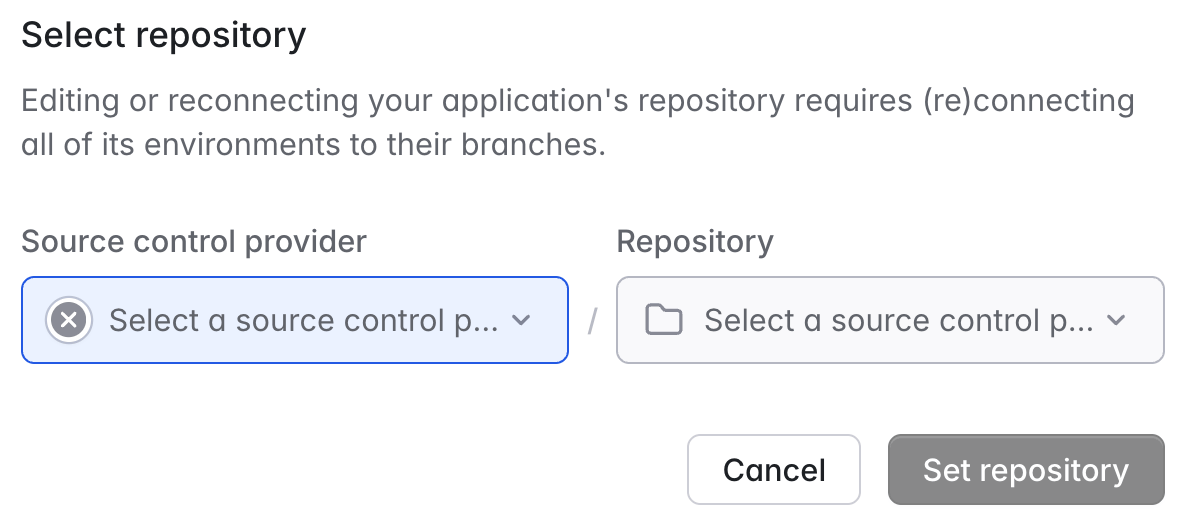
- Click the “Source control provider” dropdown to select an existing source control provider or connect a new one by clicking “Add account”.
- Select the right repository, click “Set repository”, then click “Save”.
In most cases environment branches will be restored automatically; however, there may be some cases where environment branches need to be manually selected and saved via the environment “Settings” tab.