Introduction
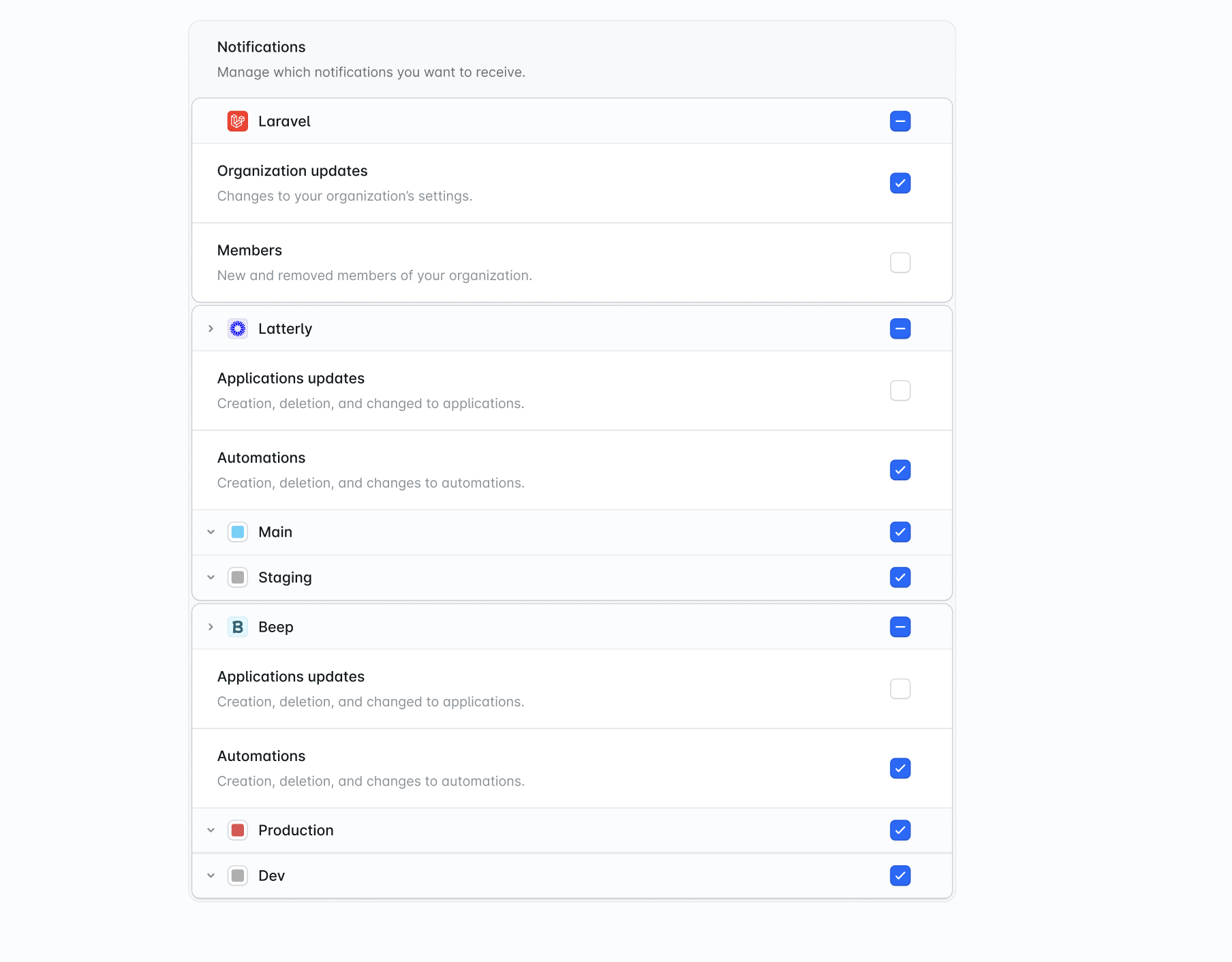
Laravel Cloud makes it easy to stay informed about important events through email and Slack notifications. Email preferences are personal to each team member, while Slack notifications are sent to your organization’s connected workspace. Both delivery methods share the same set of notification categories, scoped to your organization, applications, and environments.Notification categories
Notifications are grouped by the scope they apply to. Each category belongs to one of three scopes: your organization, a specific application, or an individual environment within an application.Organization
The following categories apply to your organization as a whole:- Organization updates – Changes to your organization’s settings
- Members – New and removed members of your organization
- API tokens – API tokens issued and revoked from your organization
- Applications – Creation and deletion of applications in your organization
- Resources – Creation, deletion, and changes to resources
- Resource alerts – Usage, limits, and health alerts for caches, databases, compute, and WebSockets
- Monthly spend alert – Alerts at 50%, 80%, 90%, and 100% of your spending limit
- Payments – Successful and failed payments, or only failed payments
Application
The following categories apply to a specific application:- Application – Changes to this application
- Environments – Creation and deletion of environments in this application
- Automations – Creation, deletion, and changes to automations
Environment
The following categories may be configured independently for each environment within an application:- Environment – Changes to this environment
- Network – Creation, deletion, and changes to domains
- Cluster alerts – Alerts when clusters have high CPU or RAM usage, or are crashing
- Deployments – Successful and failed deployments, or only failed deployments
- Commands – Successful and failed commands, or only failed commands
Email notifications
Email notifications are configured per user, allowing every team member to subscribe to the events they personally care about across the organizations, applications, and environments they have access to. To configure your email preferences, click your profile picture in the top-right corner of the dashboard, select “Account” and open the “Notifications” tab. From this page, you may enable email notifications globally, then choose the categories you wish to receive emails about for each of your organizations and applications.Organization notifications
After selecting an organization from the organization selector, you may enable any of the organization categories you wish to receive emails about. Your preferences are saved per organization, so you can subscribe to different categories for each organization you belong to.Application notifications
Application preferences are managed independently for each application. After selecting an application, you may enable any of the application categories for the application as a whole, as well as the environment categories for each individual environment within that application.By default, you’ll receive email notifications for members, API tokens, resource alerts, monthly spend alerts, failed deployments, failed commands, and failed payments. You may adjust these preferences at any time.
Slack notifications
Slack notifications send Laravel Cloud events to channels in your connected Slack workspace, keeping your team informed of activity as it happens. Unlike email, Slack preferences are shared by your team and configured at the organization level.Connecting to Slack
To get started, open your organization’s “Integrations” settings and click “Connect Slack workspace”. A new window will open where you can complete the integration with your Slack workspace.Configuring Slack delivery
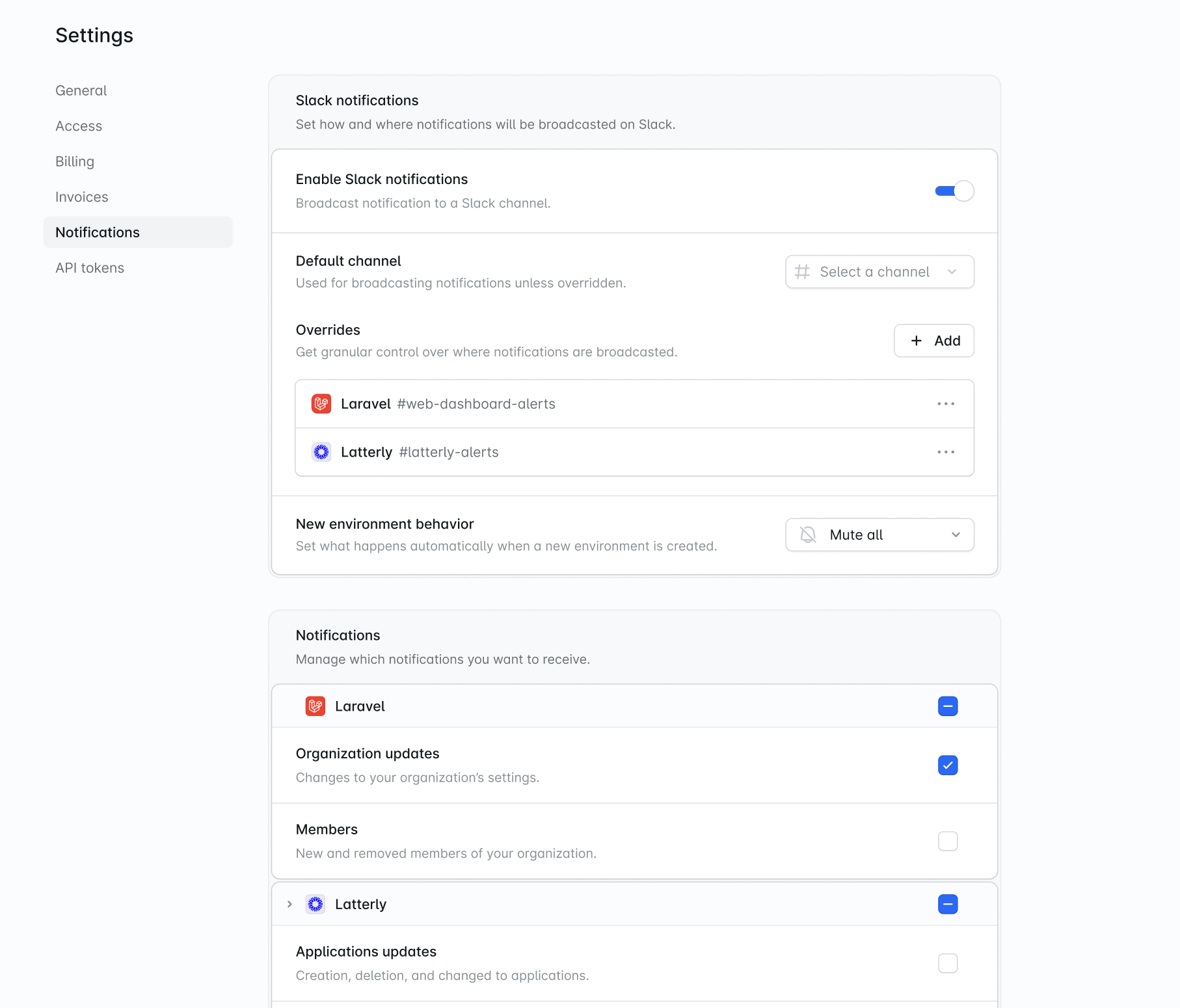
Once your Slack workspace is connected, open your organization’s “Notifications” settings and enable Slack notifications. From here, you may control how and where notifications are sent:- Default channel – The channel where notifications are sent unless a more specific override applies.
- Overrides – Send notifications for a specific application to a different channel. You may add as many overrides as you need.
- New environment behavior – Determines what happens automatically when a new environment is created within an application:
- Notify all – Enable every notification category for the new environment.
- Defaults – Apply your application’s default notification settings.
- Mute all – Disable every notification category for the new environment.
Organization notifications
From your organization’s “Notifications” settings, you may select which organization categories are sent to your Slack workspace.Application notifications
Each application has its own Slack notification preferences, configured independently from your organization’s notifications. Open your application’s “Notifications” tab to select which application categories and environment categories are sent to Slack.