

Introduction
Each environment deployed to Laravel Cloud runs on at least one App compute instance, which is assigned a specified amount of CPU processing power and available RAM. Your environment’s App compute instance is responsible for handling incoming HTTP traffic to the environment. In addition, you may add dedicated worker compute instances to your environment to process queued jobs or execute other background processes. Compute resources assigned to an environment may be managed from the environment’s infrastructure canvas dashboard.App compute cluster
Your environment’s App compute cluster represents the primary compute and infrastructure that will run your application. This compute cluster can serve web traffic, scale to zero, manage long-running processes like queue workers, and even run scheduled tasks. To scale or customize your environment’s App compute cluster, simply click the cluster in your environment’s infrastructure canvas dashboard.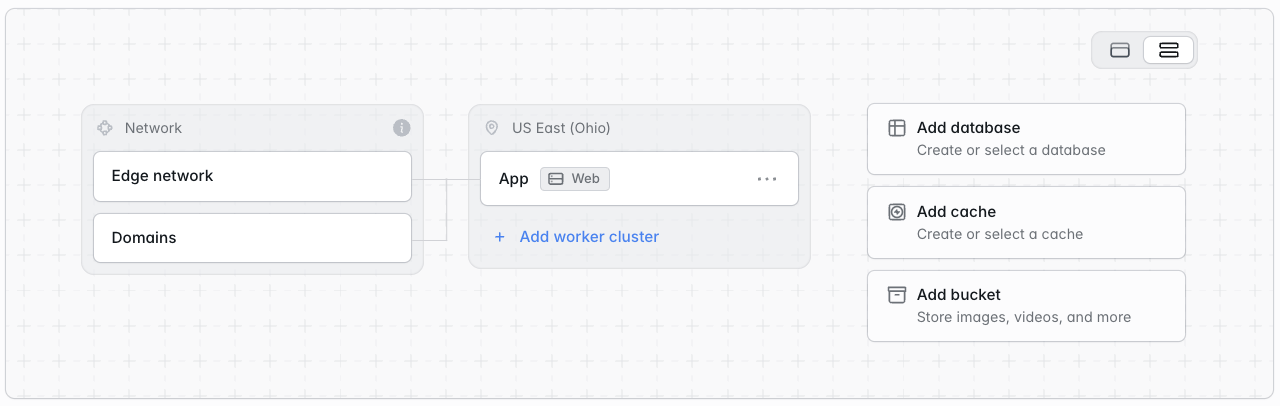
Laravel Octane
Laravel Octane is available for Laravel applications only.
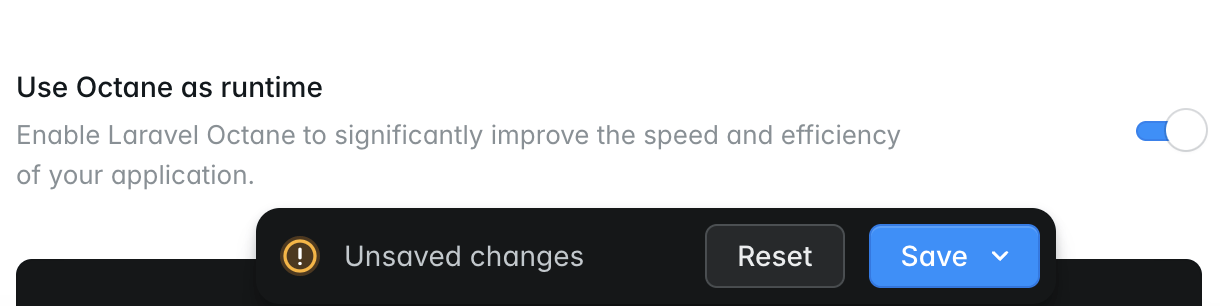
Before enabling the Laravel Octane runtime, make sure Laravel Octane has been added to your application via the Composer package manager.
Inertia SSR
Inertia SSR is available for Laravel applications only.
npm run build:ssr command instead of npm run build:
Worker clusters
Worker clusters are optional compute resources that can be added to your environment. They are a mirror copy of your environment’s App compute in the sense that they use the same repository, branch, PHP version, environment variables, deployment commands, database, and other resources. However, each Worker cluster can be independently sized and can run a custom set of queue workers or custom background processes. Dedicated worker clusters can be useful for larger applications where you want to use the primary App cluster to serve web traffic, but send background workloads to separate compute resources. To add a worker cluster to an environment, click “Add worker cluster” on the environment’s infrastructure canvas dashboard.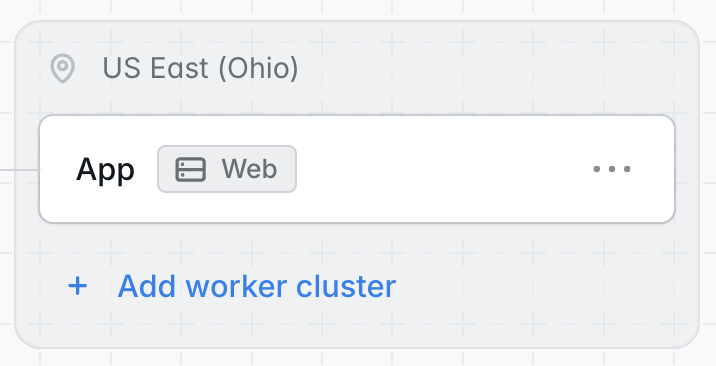
Workers do not serve web traffic. If your application needs more HTTP throughput capacity, modify your environment’s App compute cluster’s size, replica count, or autoscaling settings and re-deploy your application.
Autoscaling
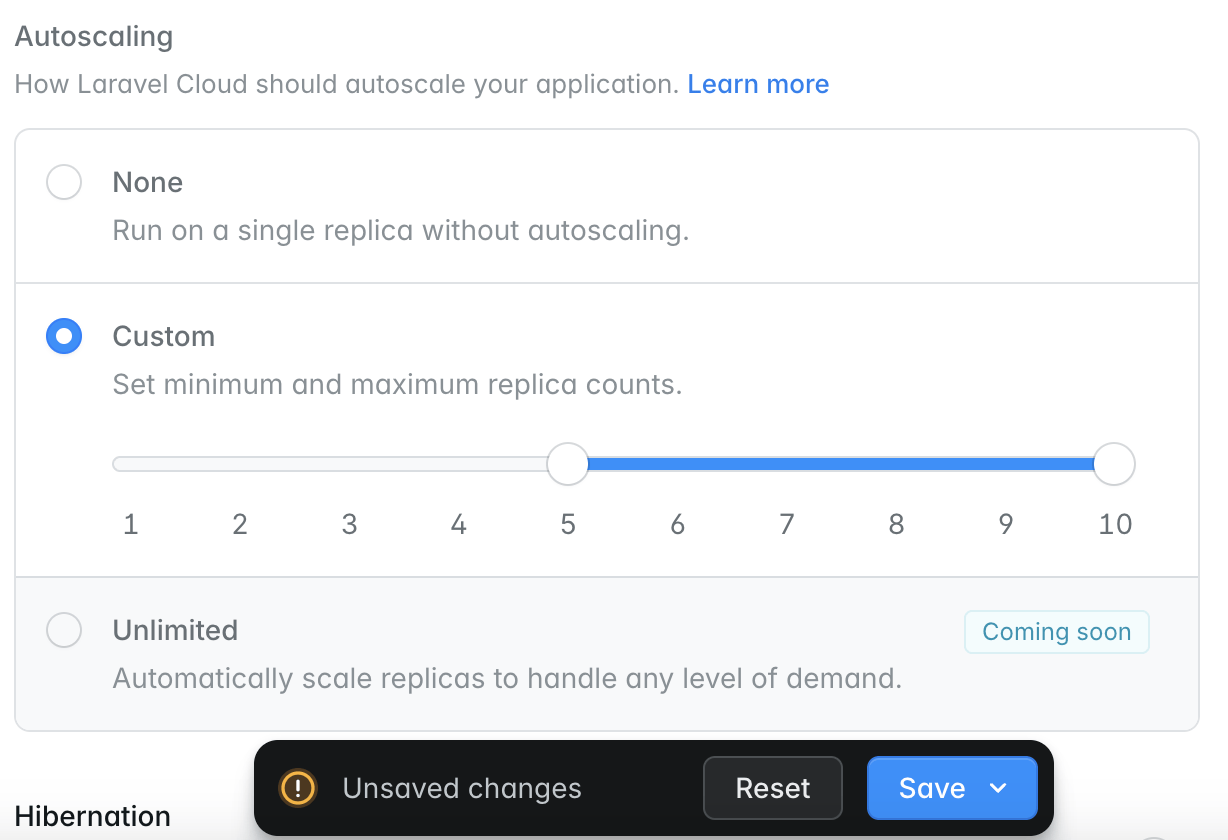
Laravel Cloud can automatically scale the compute resources attached to your environment based on demand, CPU usage, and memory usage. To configure your environment’s autoscaling strategy, click on your environment’s App or Worker compute cluster on the infrastructure canvas dashboard, and select the autoscaling strategy that is appropriate for your environment. For maximum flexibility, Laravel Cloud currently supports three different autoscaling strategies:- None: run your App / Worker compute on a single instance without autoscaling.
- Custom: automatically scale your App / Worker compute clusters up and down horizontally within a specified minimum and maximum replica range.
- Unlimited: automatically scale your App / Worker compute clusters up and down indefinitely based on demand.
HTTP traffic autoscaling
For App compute clusters, Laravel Cloud automatically scales HTTP applications based on real-time traffic pressure in addition to your configured CPU and memory thresholds. Laravel Cloud scales based on whichever limit is reached first. Laravel Cloud’s ingress layer continuously tracks active requests currently being processed by your application and adds replicas when demand exceeds available capacity. Each replica’s capacity is based on the amount of memory allocated to the application. Laravel Cloud estimates that each PHP worker uses approximately 30 MB of memory and can process one request at a time:Scheduled autoscaling
Scheduled autoscaling is available on the Business and Enterprise plans. It allows you to define time-based overrides for clusters that scale between a minimum and maximum number of replicas. This is useful for predictable traffic patterns like product launches, marketing campaigns, or business hours. Each scheduled override temporarily changes your cluster’s:- minimum replicas
- maximum replicas
- CPU threshold
- memory threshold
Scheduled autoscaling changes are applied automatically around the configured boundary times, typically within about one minute.
Scheduled autoscaling limitations
- Scheduled autoscaling is only available for clusters that scale between a defined minimum and maximum replica count.
- Recurring schedules must start and end on the same day. If you need an overnight window, create two schedules.
- One-time schedules run once, then automatically stop applying after their scheduled window ends.
Compute classes
Laravel Cloud applications run on the latest generation of AWS Graviton EC2 servers with an optimized cost to performance ratio, allowing us to pass on best-in-class compute performance and pricing. Laravel Cloud offers two classes of compute:Flex
Lightweight and cost-efficient. Perfect for dev environments or applications that need the flexibility to support periodic traffic bursts.
Pro
Larger compute sizes designed for sustained, heavy utilization. Best for large-scale, mission-critical production applications.
Compute metrics
Your environment’s compute metrics may be viewed by navigating to the “Metrics” tab of your environment. When graphed, CPU and memory usage for your environment’s App and Worker clusters will be averaged across all replicas.Scale to Zero
Your environment can scale to zero when it does not receive an inbound network request to your application (port 8080) within a specified time limit, known as the sleep timeout. While an environment is sleeping, you will not be charged for its compute until it is woken up again. New Flex compute sizes wake in under 500 milliseconds when the environment receives a new inbound request, which is fast enough that your application’s users will not notice. Legacy Flex sizes use the previous wake behavior and typically take 5-20 seconds to wake. You can enable Scale to Zero by clicking on your environment’s App compute cluster on the infrastructure canvas dashboard, enabling the Scale to Zero toggle, saving the compute cluster settings, and re-deploying the environment.Scheduled tasks and queues
For Laravel applications, a sleeping environment wakes automatically to run scheduled tasks and process queued jobs, so nothing falls behind while your environment sleeps. Symfony scheduled tasks should run on an always-awake worker cluster. When your environment wakes for a scheduled task or a manual wake interval, it stays awake for the duration of the sleep timeout. Any inbound request resets this timer. Make sure your scheduled tasks and background processes can complete within that window.If a queued job is still running when the sleep timeout elapses, the App cluster will stop and the job may be interrupted. We recommend Managed Queues for queued jobs so that background processing is never interrupted by Scale to Zero.
Manual wake interval
You may configure a manual wake interval to wake an environment on a fixed schedule, which is useful for background processes like self-managedqueue:work processes that must run periodically. As with scheduled tasks, a wake interval shorter than your sleep timeout can keep the environment awake continuously.
Worker clusters
Each Worker cluster can either stay awake at all times or follow the App cluster and sleep alongside it. You may configure this behavior within the Worker cluster’s settings.Limitations
- Only Flex compute sizes can scale to zero.
- Sub-500 millisecond wake times apply to new Flex sizes only. Legacy Flex sizes keep their previous wake behavior.
Maintenance mode
This section applies to Laravel applications. Symfony applications handle maintenance mode differently.
file driver for maintenance mode. If you run php artisan down from the “Commands” tab, the maintenance mode state will not persist across deployments or apply to multiple replicas.
To ensure a consistent maintenance mode state across your application and its replicas, set the maintenance mode driver to cache and use either a database or Laravel Valkey (Redis-compatible) as the maintenance mode state backend in your environment variables.